After the tenant activation, you will be automatically redirected to your ChaChing Dashboard. This is your main control page where you can:
- Explore Subscriptions to confirm migrated data
- Review Products to ensure your catalog is synchronized
- Check Customers to verify all imported records
- Create a subscription, invoice, or payment
- Visit Settings to issue API keys or adjust branding
The dashboard opens on the Home section. The interface includes a left-hand navigation panel, a top action bar, and a set of real-time metrics that summarize your business performance.
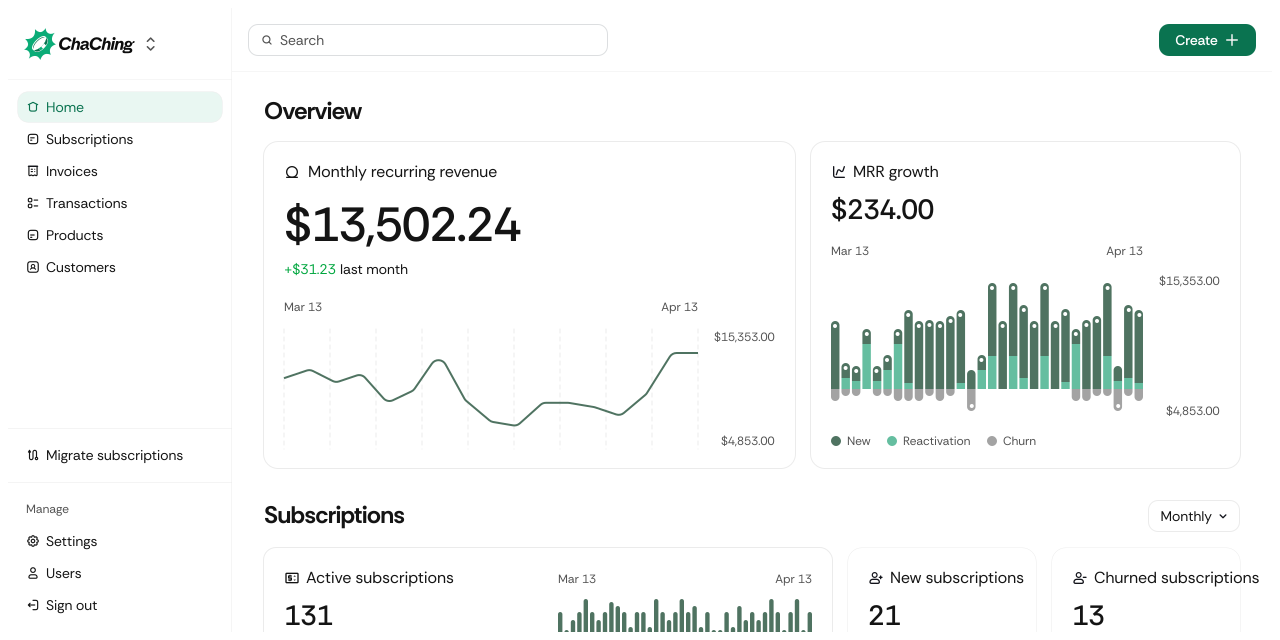
The left sidebar helps you quickly access every part of your tenant:
Home
Your primary analytics and shortcuts page.
Subscriptions
View, create, and manage recurring subscriptions.
Invoices
Access all invoices—draft, paid, overdue, and failed.
Transactions
Review all payment transactions and payout activity.
Products
Manage your product catalog, pricing, and billing intervals.
Customers
Full customer directory with profile and billing history.
Migrate Subscriptions
Re-run or manage your Stripe migration if needed.
Settings
Tenant settings, branding, billing configuration, and integrations.
Users
Manage team members and access permissions.
Sign Out
Safely log out of your tenant.
The Home section is designed to give you an immediate, at-a-glance understanding of your business performance.
Toggle Sidebar – Show or hide the navigation panel.
Create – A quick-action menu including:
- Create payment
- Create invoice
- Create subscription
Overview, Subscriptions, Your charts – The default analytics view.
Date Range Filter
The filter lets you switch between time periods:
- Last 30 days (default)
- Last 7 days
- Last 3 months
- Year to date
- All time
Shows your current MRR and 30-day growth.
Shows subscription activity within the selected time period, including:
| Metric | Description |
|---|---|
| Active subscriptions | Total currently active subscriptions |
| New subscriptions | Subscriptions created during the selected period |
| Churned subscriptions | Subscriptions cancelled during the selected period |
These sections help you quickly understand changes in your subscriber base.
Your charts section visualizes billing activity for the selected date range.
| Metric | Description |
|---|---|
| Total Revenue | Total amount collected in the selected period |
| Avg. Revenue Per User (ARPU) | Average recurring revenue per customer |
| Total Invoices | Number of invoices created |
| Failed Payments | Total number of failed payment attempts |
Each item has a View all link, directing you to the relevant detailed dashboard area.
This area gives you a quick snapshot of income, invoice volume, and potential problem areas.