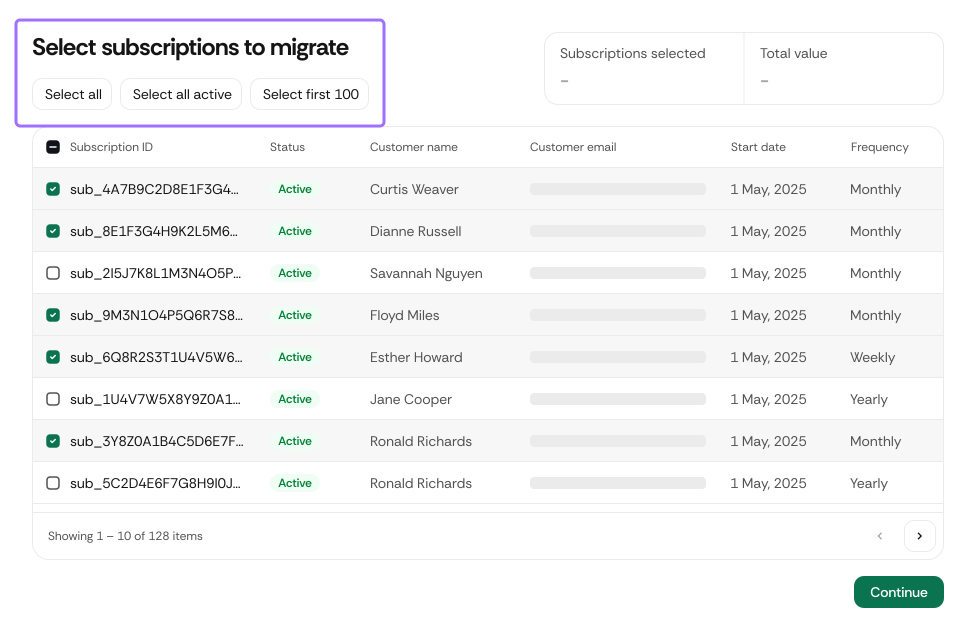
The Migrate Subscriptions section allows you to manually start or continue migrating existing subscriptions from Stripe into ChaChing. This view provides selection controls, visibility into subscription data, and a clear summary before migration begins.
| Control | Description |
|---|
| Select all | Selects all subscriptions currently listed in the table. |
| Select all active | Selects only subscriptions with an active status. |
| Select first 100 | Selects the first 100 subscriptions in the list. Useful for staged migrations. |
Displayed above the table and updated dynamically as subscriptions are selected.
| Field | Description |
|---|
| Subscriptions selected | Shows the total number of subscriptions selected for migration. |
| Total value | Displays the combined monetary value of the selected subscriptions. |
| Column | Description |
|---|
| Subscription ID | Unique identifier of the Stripe subscription. Selecting the checkbox adds it to the migration summary. |
| Status | The subscription's status in Stripe (e.g., active, trial, past_due). After migration, the subscription uses ChaChing statuses; see Handle failed subscription payments. |
| Customer name | Full name of the customer associated with the subscription. |
| Customer email | Email address linked to the subscription. |
| Start date | Original subscription start date in Stripe. |
| Frequency | Billing interval (e.g., monthly, yearly). |
| Renewal date | Next scheduled billing date after migration. |
| Amount | Subscription price charged per billing period. |
| Action | Description |
|---|
| Continue | Starts the migration process for the selected subscriptions. Subscriptions will be imported from Stripe and become visible in the Subscriptions section once completed. |
- Migration only starts after clicking Continue.
- Selected subscriptions are cancelled in Stripe and recreated in ChaChing according to their billing cycle.
- Progress can be monitored via the Subscriptions section after migration begins.