ChaChing allows you to create one-off payments manually from the dashboard. This is useful for charging customers outside of subscriptions, collecting ad-hoc fees, or retrying payments.
- In the ChaChing dashboard, locate the Create button in the top-right corner.
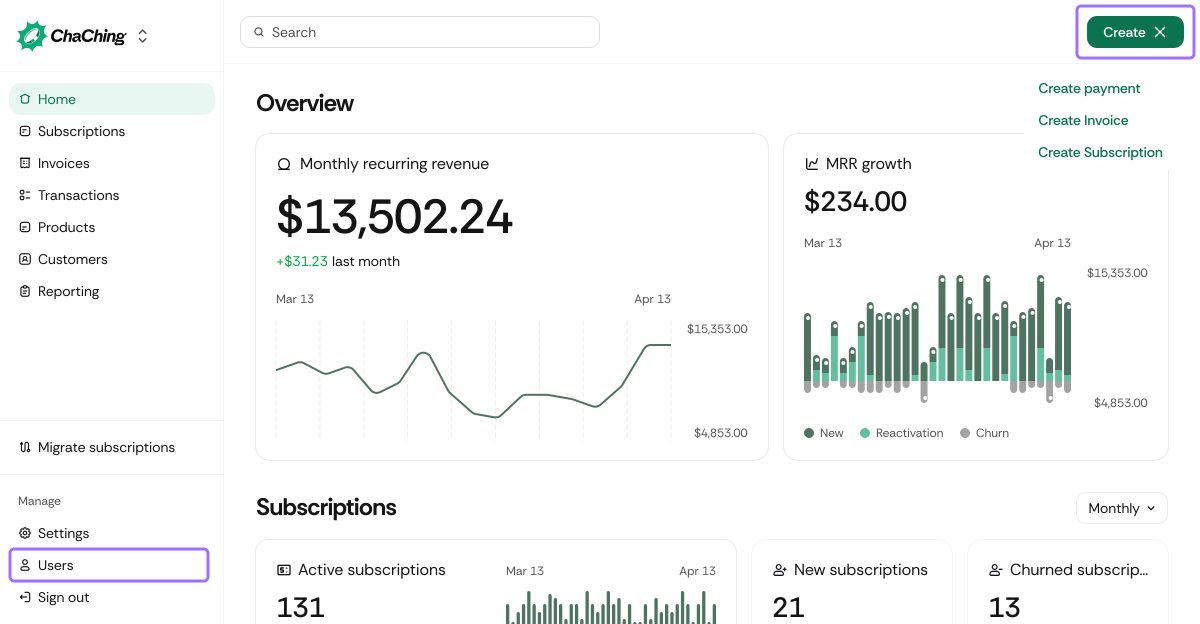
- Click Create and select Create payment.
- The Create a payment form opens.
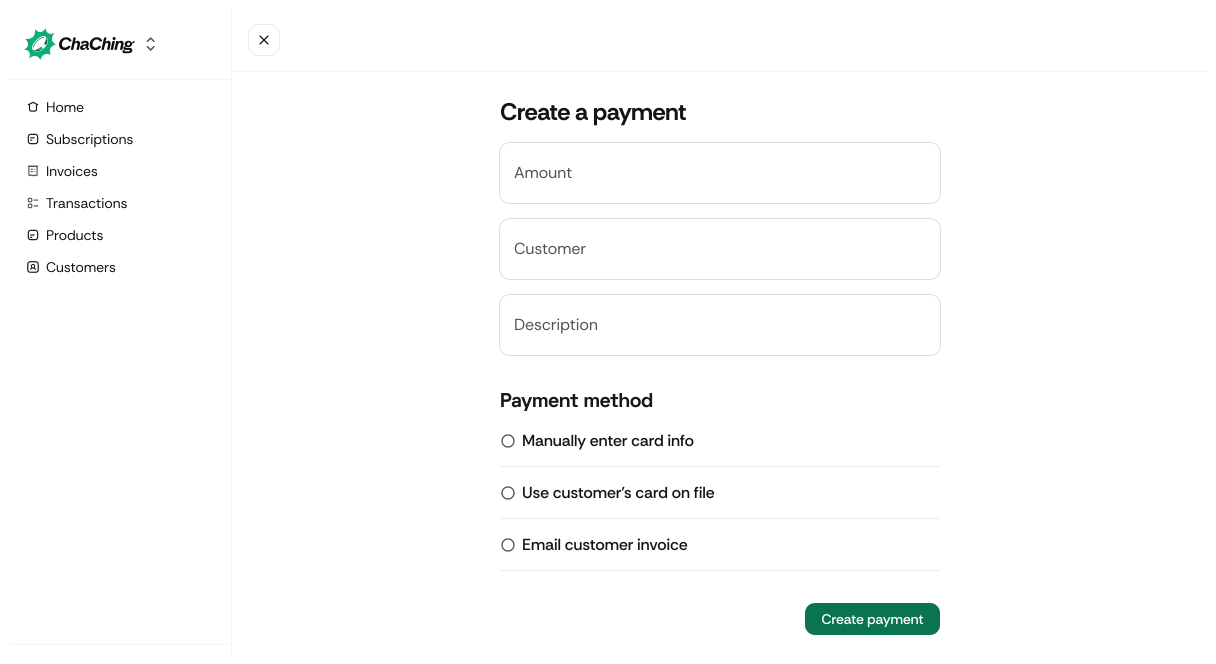
| Field | Description | Required / Optional |
|---|---|---|
| Amount | The total amount to charge the customer. | Required |
| Customer | Select an existing customer from the list. | Required |
| Description | Optional internal note describing the payment purpose. Appears in payment details and invoices. | Optional |
| Payment method | Select how the payment will be collected. | Required |
You can choose one of the following payment methods:
Manually enter card info
Enter card details directly to charge the customer immediately. Alternatively, use the Link tool to select from available saved cards.
Use customer’s card on file
Charges the default payment method already saved for the selected customer.
Email customer a payment link
Sends a secure payment link to the customer so they can complete the payment themselves.
- Review the entered information.
- Click Create payment.
Once created:
- The payment appears in the Transactions section.
- Related invoices and payment statuses are updated automatically.
- If a payment link is used, the payment remains pending until the customer completes it.