Use this flow to issue an invoice to a customer and either request payment or automatically charge a saved payment method.
- In the top-right corner of the dashboard, click Create.
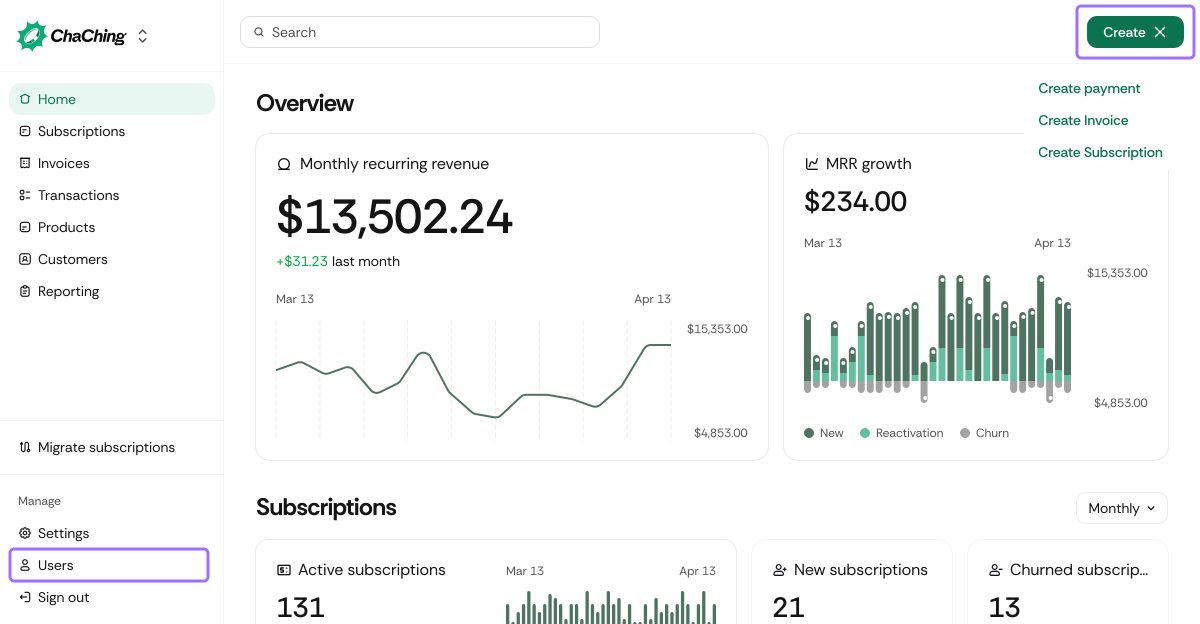
- Select Create an invoice.
| Field | Description |
|---|---|
| Customer | Select an existing customer from the dropdown. The invoice will be issued to this customer. |
You can choose how the invoice will be paid.
| Field | Description |
|---|---|
| Request payment | Creates an invoice and sends it to the customer for manual payment. |
| Due in | Select when the invoice is due: Today, Tomorrow, 7, 14, 30, 45, 60, or 90 days. |
| Field | Description |
|---|---|
| Autocharge customer | Automatically charges a saved payment method on file. |
| Choose payment method | Select a saved card or payment method from the dropdown. |
Add one or more products to the invoice.
| Field | Description |
|---|---|
| Product | Search and select an existing product. |
| Amount | Price of the selected product. |
| Tax | Select an existing tax rate or click Add tax. |
| Total | Automatically calculated invoice total. |
Additional actions:
- Add another product – include multiple line items.
- Add tax manually – apply a custom tax amount.
Click Review Invoice to preview how the invoice will appear to the customer. Applicable to Option A: Request Payment.
You can preview three views:
- Invoice Preview
- Email Preview
- Payment Page Preview
Once reviewed:
- Click Create payment.
- The invoice is created and:
- Sent to the customer (if Request payment was selected), or
- Charged automatically (if Autocharge customer was selected).
- The invoice appears in Invoices with status:
- Draft, Open, Paid, or Void.
- Payments and failures follow your configured retry and invoice rules.
- Customers can pay via the hosted payment page powered by ChaChing.