Use this flow to create a recurring subscription for an existing customer based on one or more products.
- In the top-right corner of the dashboard, click Create.
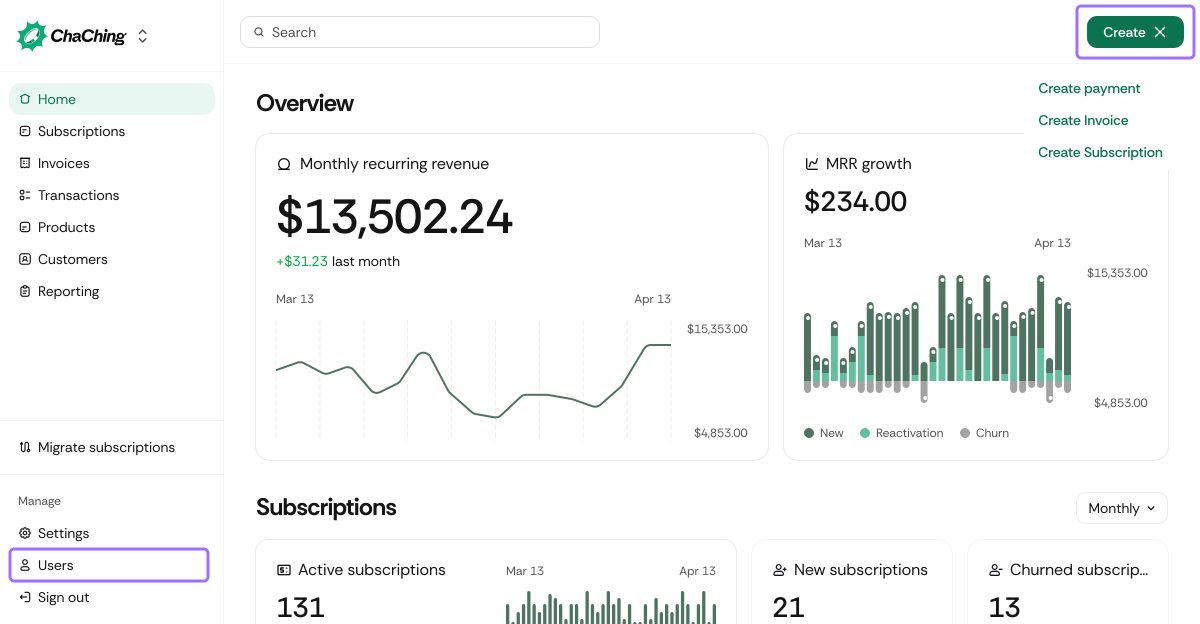
- Select Create subscription.
| Field | Description |
|---|---|
| Customer | Select the customer who will be billed for this subscription. |
| Field | Description |
|---|---|
| Subscription start date | Date when the subscription becomes active. |
| This subscription doesn't have end date | Indicates the subscription will continue indefinitely until cancelled. |
| Subscription end date | Appears when the toggle is turned off. Defines when the subscription ends. |
| Bill starting date | Date when billing begins (usually same as start date). |
Add one or more products to the subscription.
| Field | Description |
|---|---|
| Product | Search and select an existing product. |
| Amount | Quantity of the selected product (default is 1). |
| Tax | Select an existing tax rate or click Add tax. |
| Total | Automatically calculated based on products, quantity, and tax. |
Additional options:
- Add another product – include multiple products in the same subscription.
- Add tax manually – apply a custom tax amount if needed.
| Field | Description |
|---|---|
| Free trial days | Number of trial days before billing starts. Set to 0 if no trial is required. |
Preview subscription and invoice details before creation:
- Summary Preview
- Invoice Preview
Click Create subscription to finalize.
- The subscription is created and appears in Subscriptions with status Active, Trial, or Scheduled.
- An invoice is generated according to the billing start date.
- Future invoices are created automatically based on the product’s billing frequency.
- Payments follow your configured retry and subscription rules.
- The customer can view charges and invoices through ChaChing’s payment flow.