To update an existing customer, the user must follow these navigation steps:
- Go to the Customers section in the left navigation panel.
- Hover over the customer you want to edit.
- Click View details to open the customer profile.
- In the customer profile page, select Edit customer.
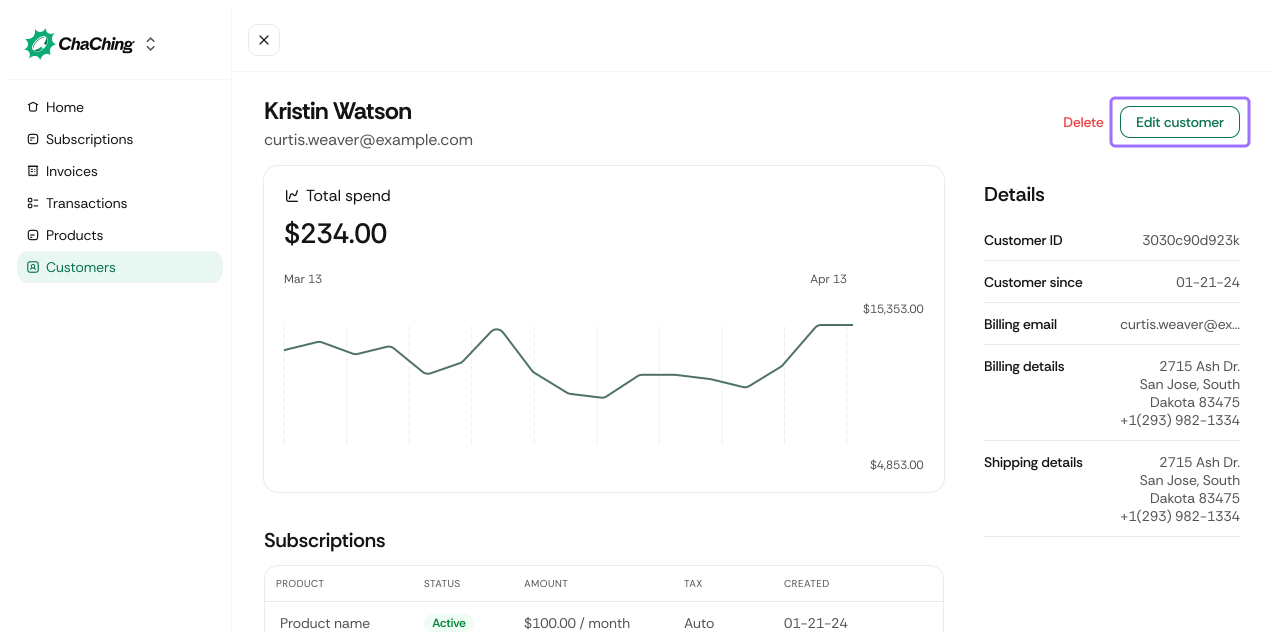
This opens the full customer-editing form.
The Edit Customer page allows business users to update customer profile information, billing data, and shipping details.
| Field / Element | Description |
|---|---|
| Customer Name | The customer’s full name displayed in records. |
| Primary customer email used for receipts, login, and notifications. | |
| Show advanced option | Expands the form to include Billing and Shipping details. |
| Field / Element | Description |
|---|---|
| Billing email is same as account email | Checkbox to reuse the main customer email for billing purposes. |
| Billing Email | A separate billing email (visible only when the checkbox is disabled). |
| Phone | Customer’s billing phone number. |
| Address Line 1 | Primary billing address. |
| Address Line 2 | Secondary address details (apartment, suite, etc.). |
| City | Billing city. |
| State | Billing state or region. |
| Zip | Postal/ZIP code. |
| Field / Element | Description | Required / Optional |
|---|---|---|
| Same as the billing details | Copies the billing address into shipping fields. | Optional |
| Phone | Shipping contact phone number. | Optional |
| Address Line 1 | Primary shipping address. | Optional |
| Address Line 2 | Additional address details. | Optional |
| City | Shipping city. | Optional |
| State | Shipping state or region. | Optional |
| Zip | Postal/ZIP code. | Optional |
Click the Update customer button to save the updated customer information.